Como limitar a velocidade dos dispositivos conectados ao roteador MERCUSYS
Introdução
Este artigo explica como limitar a velocidade de internet de dispositivos específicos usando o recurso Limite de Velocidade (Speed Limit) em um roteador MERCUSYS.
Configuração
Passo 1. Faça login na página de gerenciamento web do roteador.
Abra um navegador web como Chrome, Firefox ou Edge. Insira um dos seguintes endereços na barra de endereços e pressione Enter. Faça login com a senha que você definiu para o roteador.
mwlogin.net
192.168.1.1
Para detalhes, consulte Como fazer login na página de gerenciamento web do Roteador Wireless MERCUSYS
Passo 2. Vá para Mapa da Rede > página de Clientes para exibir a lista de dispositivos conectados ao seu roteador. A figura abaixo mostra a página de Clientes do MR27BE como exemplo.
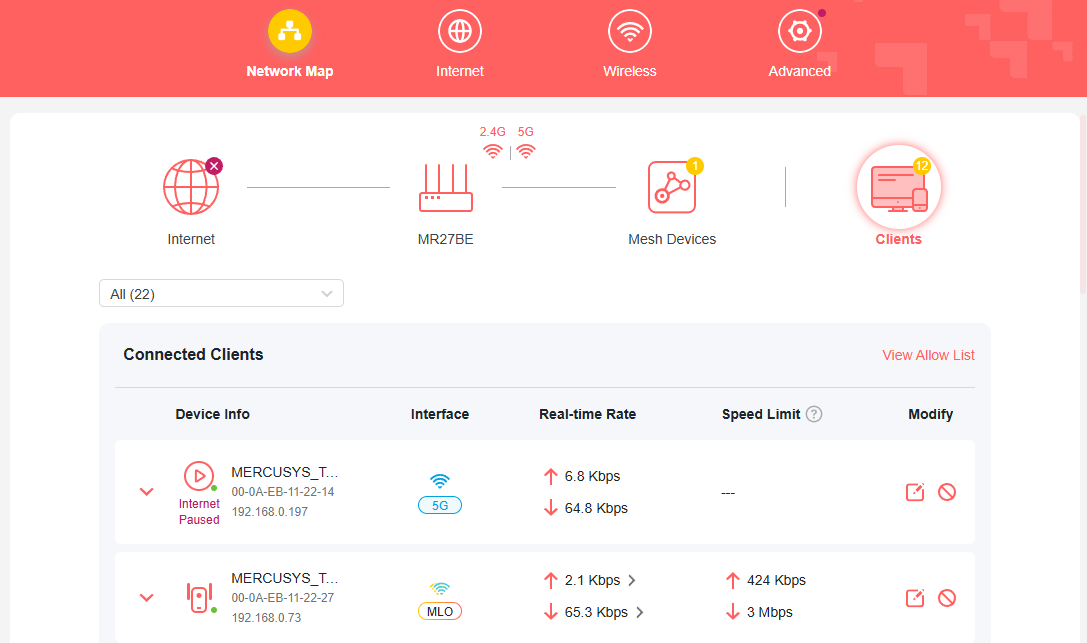
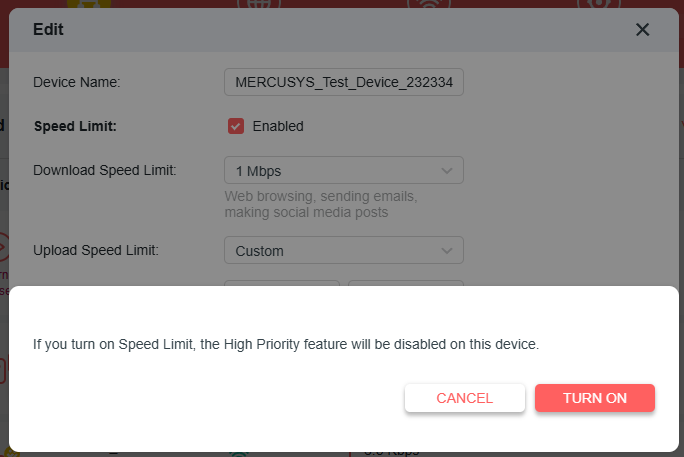
Passo 3. Encontre o dispositivo que você deseja limitar a velocidade, clique na opção  na coluna Modificar e ative a alternância de Limite de Velocidade.
Nota: Quando o limite de velocidade está ativado, o cliente será removido da lista de alta prioridade do QoS.
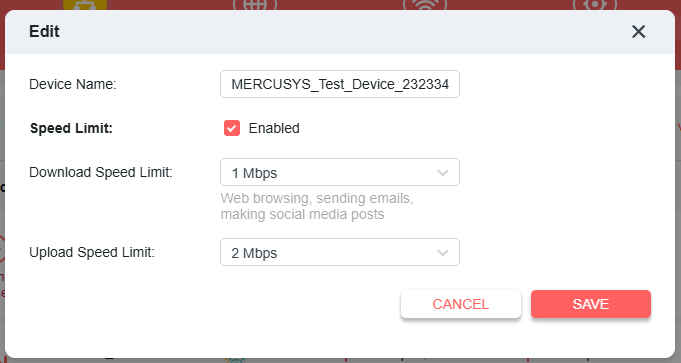
Passo 4. Defina o limite de velocidade de download e upload de acordo com suas necessidades. Em seguida, clique em Salvar. Agora as velocidades do dispositivo estarão limitadas.
Solução de Problemas
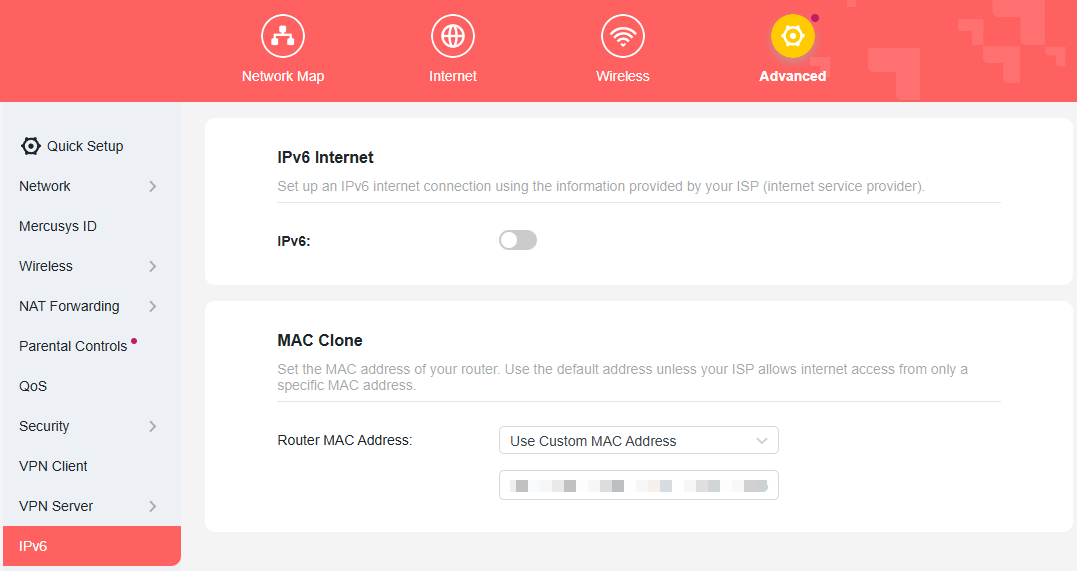
O Limite de Velocidade não faz efeito? Se a velocidade do dispositivo não for limitada com sucesso após a configuração, vá em Avançado > IPv6 na página web para desativar a função IPv6 e reinicie o roteador MERCUSYS.