How to recover the web login password of your router if you forget it
This feature allows you to recover the login password you set for you router in case you forget it, if you already cannot log in to the management page please reset your router to factory default.
1. Log in to the web-based interface of the router. For details, please refer to How to log in to the web management page of MERCUSYS Wireless Router
2. Go to Advanced > System Tools > Administration and focus on the Password Recovery section.
3. Tick the Password Recovery Enable checkbox.
4. Specify a mailbox (From) for sending the recovery letter and enter its SMTP Server address. Specify a mailbox (To) for receiving the recovery letter. If the mailbox (From) to send the recovery letter requires encryption, please select Enable Authentication and enter its username and password.
Note: SMTP server is available for users in most webmail systems. For example, the SMTP server address of Gmail is smtp.gmail.com. You can refer to their Help page to learn the SMTP server address.
Generally, Authentication option should be enabled if the login of the mailbox requires username and password.
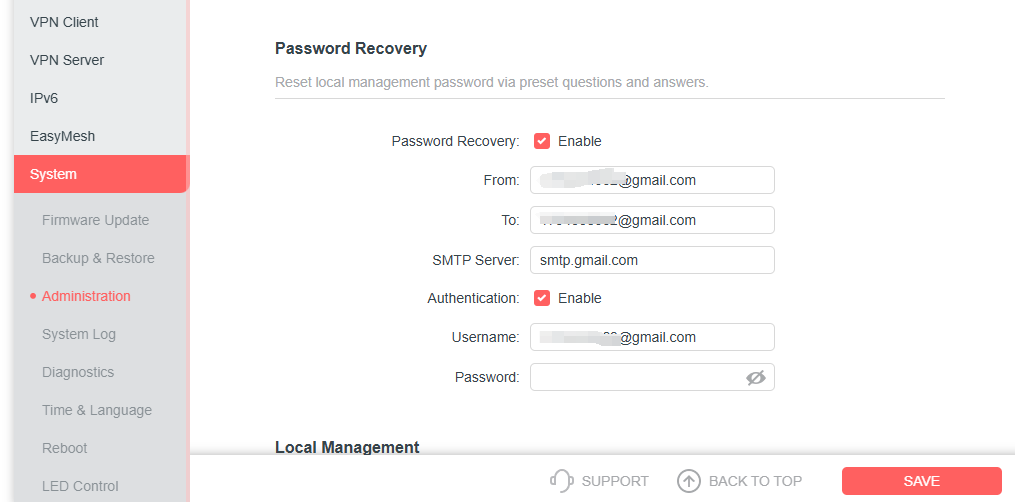
5. Click Save.
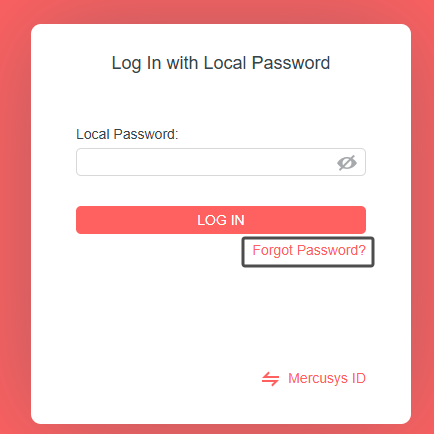
To recover the login password, please visit http://mwlogin.net, click Forgot Password? on the login page and follow the instructions to set a new password.
Get to know more details of each function and configuration please go to Support Center to download the manual of your product.